Modern multiplayer gaming is as much about communication as it is about skill. Whether you are coordinating plays in a competitive shooter or casually chatting with friends while exploring an open-world RPG, voice chat plays a crucial role in the experience. Many players want to use game chat and party chat at the same time on Xbox and PlayStation, but the process is not always straightforward. Understanding how each platform handles voice channels can help you configure your setup properly and avoid missing important in-game callouts.
TLDR: You can use both game chat and party chat simultaneously on Xbox and PlayStation by adjusting audio mix settings, using compatible headsets, or incorporating external devices like mixamps. Xbox offers built-in chat mixer controls that are easy to configure, while PlayStation may require more detailed audio output customization. In some cases, advanced setups using capture cards or PC-based chat routing offer the most flexibility for streamers and competitive players.
Understanding the Difference Between Game Chat and Party Chat
Before configuring anything, it is important to understand how these two systems function.
- Game Chat: Voice communication built directly into the game. You can speak with teammates (and sometimes opponents) within that specific title.
- Party Chat: A console-level feature allowing you to speak privately with invited friends, regardless of what game you are playing.
Most consoles prioritize one channel over the other, which is why many players believe they cannot use both at once. In reality, both Xbox and PlayStation provide mechanisms to manage simultaneous audio—but the setup differs significantly.
How To Use Game Chat and Party Chat on Xbox
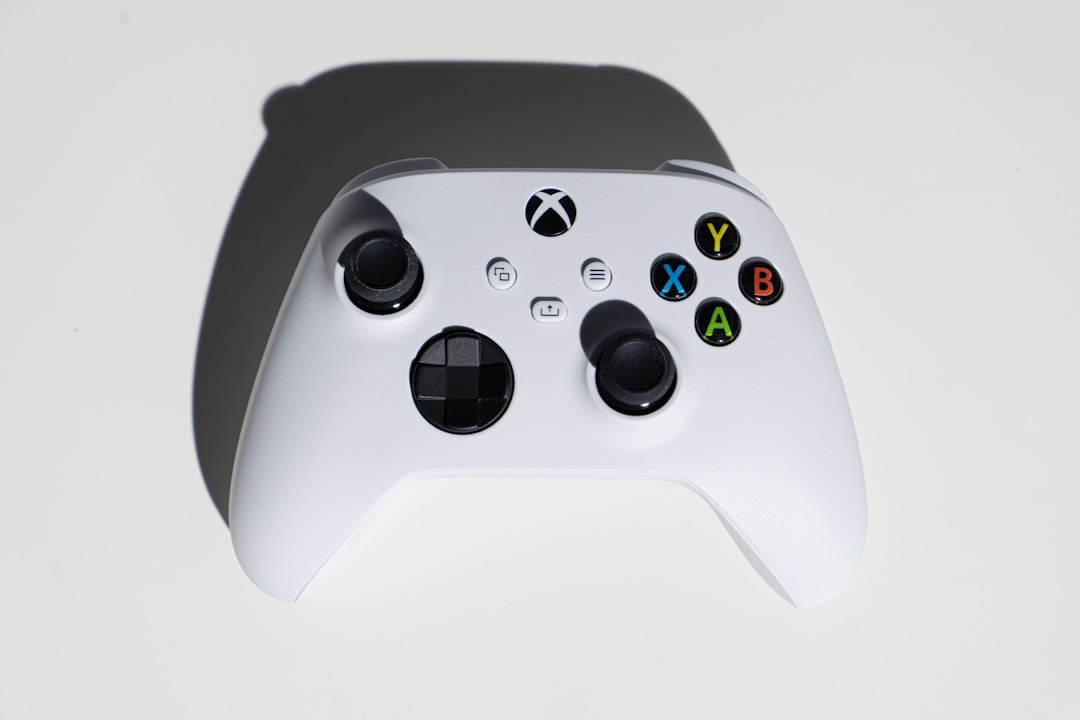
Xbox consoles (Xbox One, Xbox Series X, and Xbox Series S) provide a relatively streamlined approach through their built-in audio mixing controls.
Method 1: Adjusting the Xbox Chat Mixer
The simplest method involves adjusting the Chat Mixer settings:
- Press the Xbox button to open the guide.
- Go to Profile & System > Settings.
- Select General > Volume & Audio Output.
- Adjust the Party Chat Output and Chat Mixer settings.
The Chat Mixer lets you:
- Reduce game audio when someone speaks in party chat.
- Reduce party chat when game audio is detected.
- Balance both channels equally.
If you want both game chat and party chat simultaneously, make sure:
- Your headset supports stereo or spatial audio.
- Party chat output is set to Headset & Speakers (if you want routing flexibility).
Method 2: Using Certain Multiplayer Games
Some games restrict audio routing when you are in an Xbox Party. In these cases, you must:
- Leave the Xbox Party to re-enable in-game proximity chat.
- Use game-specific settings to enable cross-platform voice bridges.
However, many modern titles, especially cross-platform games, allow both channels when your audio mix is configured properly.
Method 3: Using a MixAmp or Audio Interface
Professional or competitive players often choose a hardware-based solution such as:
- Astro MixAmp
- Turtle Beach TAC
- SteelSeries GameDAC
These devices allow independent volume control for:
- Game audio
- Party chat
- Microphone monitoring
This method provides the highest level of control and reduces the risk of one channel overriding the other.
How To Use Game Chat and Party Chat on PlayStation
On PlayStation 4 and PlayStation 5, the process requires more deliberate configuration because Sony separates voice chat priorities differently from Xbox.
Method 1: Adjust Audio Output Settings
- Press the PS button to open Control Center.
- Navigate to Sound.
- Select Voice Chat Balance.
- Adjust the slider between Party Chat and Game Audio.
This setting controls volume levels but does not automatically merge both channels unless the output device supports it.
Method 2: Output to Different Devices
An effective strategy on PS5 is routing audio to different outputs:
- Send party chat to your headset.
- Allow game chat through HDMI audio (TV or monitor).
This configuration allows you to hear both, although the balance may not be ideal without external hardware.
Method 3: Discord Integration (PS5)
PlayStation 5 now supports Discord voice chat integration. This introduces another layer of flexibility:
- Use Discord for party communication.
- Enable in-game chat separately.
However, be aware that certain games prioritize either system chat or in-game chat and may mute one automatically unless configured correctly.
Method 4: External Mixers and Capture Setups
Streamers often rely on external equipment such as:
- Elgato capture cards
- USB audio mixers
- Dual-PC streaming setups
This allows them to separate:
- Game audio
- Party chat
- In-game proximity chat
- Stream output audio
While this solution is more technical and expensive, it delivers professional-grade audio management.
Comparison Chart: Xbox vs PlayStation Voice Chat Flexibility
| Feature | Xbox Series X/S | PlayStation 5 |
|---|---|---|
| Built-in Chat Mixer | Yes, easily adjustable | Limited slider-based balance |
| Simultaneous Game + Party Chat | Generally easier | Requires more configuration |
| Discord Integration | Fully supported | Supported with account linking |
| External MixAmp Compatibility | Excellent support | Excellent support |
| Ease of Setup | User-friendly | Moderate complexity |
Common Problems and How To Fix Them
1. Game Chat Stops Working When Joining Party
This is often due to automatic chat prioritization. Try:
- Checking in-game voice settings.
- Restarting the game after joining party chat.
- Adjusting output from “Headset Only” to “Headset & Speakers.”
2. Teammates Cannot Hear You in Game Chat
Possible causes include:
- Muted in-game microphone.
- Privacy settings restricting communication.
- Cross-play voice settings disabled.
3. Echo or Audio Bleeding Between Channels
This typically results from improper routing. Solutions include:
- Using closed-back headphones.
- Disabling TV speaker output.
- Reducing microphone monitoring levels.
Best Headsets for Dual Chat Management
Image not found in postmetaIf you frequently use both communication systems, consider headsets designed for advanced routing:
- Astro A40 + MixAmp – Precise channel separation.
- SteelSeries Arctis Nova Pro – Simultaneous Bluetooth and console input.
- Turtle Beach Stealth Pro – Dual wireless systems.
Look specifically for:
- Independent chat and game volume dials.
- Dual input capability.
- USB and optical audio support.
Advanced Setup for Competitive Players
If you compete seriously or stream regularly, consider a hybrid console-PC configuration:
- Route console HDMI into a capture card.
- Send audio to streaming software.
- Use a USB mixer to split chat and game audio.
- Route microphone back to both console and PC.
This allows total control over:
- Voice balancing
- Stream monitoring
- Recording isolated audio tracks
This approach is widely used in esports and professional content creation environments.
Security and Privacy Considerations
When using simultaneous chat systems, remember:
- Party chat is private and encrypted at the platform level.
- Game chat may expose your voice to a wider audience.
- Adjust privacy settings to prevent unwanted communication.
Always verify whether your microphone is active in both channels. Accidentally speaking on an open in-game mic while in private party chat is a common mistake.
Final Thoughts
Using game chat and party chat at the same time is entirely possible on both Xbox and PlayStation, though the implementation differs significantly. Xbox provides a more straightforward approach through its integrated Chat Mixer, while PlayStation requires more deliberate routing and audio configuration. For casual players, simple balance adjustments will usually suffice. For competitive gamers and streamers, investing in dedicated audio hardware delivers far greater control and reliability.
Ultimately, the key is understanding how your console routes voice data and configuring your headset and settings accordingly. With the correct setup, you can coordinate with teammates in-game while maintaining conversation with your private party—without sacrificing clarity, performance, or immersion.
