Clash Royale remains one of the most competitive and strategically demanding mobile games available today. While it was originally designed for iOS and Android devices, many players prefer the larger screen, improved performance, and keyboard precision that a Mac can offer. If you are looking for a reliable way to play Clash Royale on macOS, this guide will walk you through every practical method, step by step, with clear explanations and recommendations.
TLDR: You can play Clash Royale on a Mac by using an Android emulator such as BlueStacks, installing Android apps directly on Apple Silicon Macs, or mirroring your iPhone screen. The most stable and widely supported method for most users is an emulator like BlueStacks. Apple Silicon Macs can also install some iOS apps natively, but compatibility may vary. Choose the method that best matches your Mac model and performance needs.
Can You Play Clash Royale on Mac?
Clash Royale does not have a native macOS version. However, that does not mean Mac users are excluded. There are three legitimate and commonly used approaches:
- Using an Android emulator (most popular solution)
- Installing iOS apps on Apple Silicon Macs
- Screen mirroring from an iPhone to your Mac
Each method has its own advantages and limitations. Below, we examine all options in detail so you can decide confidently.
Method 1: Play Clash Royale on Mac Using BlueStacks (Recommended)
For most users, BlueStacks is the most practical and stable solution. It is an Android emulator that allows you to run Android apps directly on your Mac.

Why Choose BlueStacks?
- Optimized for gaming performance
- Customizable keyboard and mouse controls
- Stable updates and broad app compatibility
- Works on most modern macOS systems
Step-by-Step: Installing Clash Royale via BlueStacks
- Download BlueStacks for macOS
Visit the official BlueStacks website and download the latest macOS version. - Install the Emulator
Open the downloaded file and follow the installation instructions. You may need to grant system permissions under System Settings > Privacy & Security. - Sign in with Google
Launch BlueStacks and sign in using your Google account to access the Google Play Store. - Search for Clash Royale
Open the Play Store inside BlueStacks and type “Clash Royale” in the search bar. - Install the Game
Click Install and wait for the download to finish. - Configure Controls
Adjust keyboard mapping for faster reactions during battles.
Performance Tips
- Allocate at least 4GB of RAM to the emulator.
- Close background applications while playing.
- Enable virtualization if your Mac model supports it.
This method delivers the most console-like experience and is ideal for competitive players.
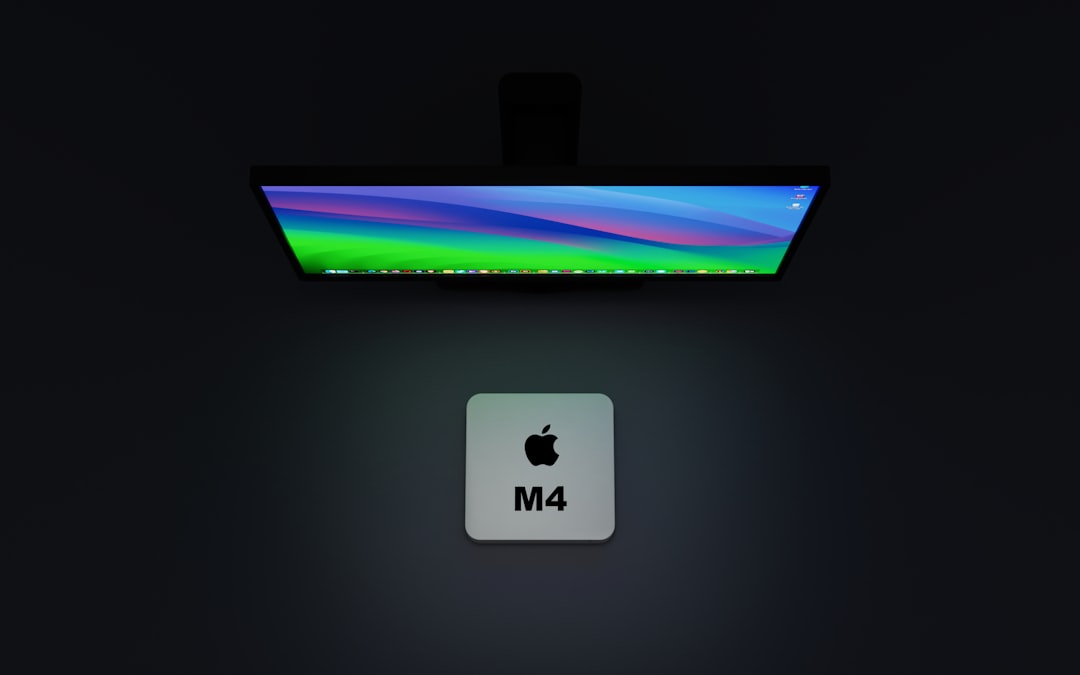
Method 2: Install Clash Royale on Apple Silicon Macs (M1, M2, M3)
If you own a Mac with Apple Silicon, you may be able to install iPhone or iPad apps directly from the App Store, depending on availability.
How It Works
Apple Silicon Macs share architecture with iPhones and iPads. This allows certain iOS apps to run natively on macOS without emulators.
Step-by-Step Instructions
- Open the Mac App Store.
- Search for Clash Royale.
- Click on the iPhone & iPad Apps tab if available.
- Select Install.
Limitations
- Not all iOS apps are available for Mac installation.
- Control optimization may be limited.
- Performance can vary depending on macOS updates.
This method is clean and simple, but availability depends on Supercell’s distribution settings.
Method 3: Mirror Your iPhone to Your Mac
Another legitimate method is screen mirroring. While this does not run the game directly on your Mac, it allows you to play while viewing it on a larger screen.
Options for Screen Mirroring
- AirPlay (built-in for modern Macs)
- QuickTime Player with USB connection
- Third-party mirroring tools
Using QuickTime (Wired Method)
- Connect your iPhone to your Mac using a USB cable.
- Open QuickTime Player.
- Click File > New Movie Recording.
- Select your iPhone as the camera source.
- Launch Clash Royale on your iPhone.
This approach eliminates emulator compatibility concerns but does not provide keyboard integration.
Comparison Chart: Best Way to Play Clash Royale on Mac
| Method | Performance | Ease of Setup | Keyboard Support | Best For |
|---|---|---|---|---|
| BlueStacks Emulator | High (if configured properly) | Moderate | Yes | Competitive players |
| Apple Silicon App Install | Moderate to High | Easy | Limited | M1/M2/M3 Mac users |
| Screen Mirroring | Depends on device | Easy | No | Casual play on large screen |
System Requirements for Smooth Gameplay
Image not found in postmetaFor a professional experience, ensure your hardware meets the following recommendations:
- macOS: Updated to the latest version supported by your device
- RAM: Minimum 8GB recommended
- Storage: At least 10GB free space
- Processor: Intel i5 or Apple M1 equivalent and above
Running an emulator requires additional memory, so underpowered systems may experience lag.
Is It Safe to Use Emulators?
When downloaded from official sources, reputable emulators like BlueStacks are generally safe. However, always follow these best practices:
- Download only from the official website.
- Avoid modified versions of Clash Royale.
- Keep macOS security settings enabled.
- Do not use cheating software or exploits.
Supercell allows gameplay through legitimate emulators, but violating terms of service can result in account suspension.
Advantages of Playing Clash Royale on Mac
- Larger display: Better battlefield awareness.
- Improved control customization: Faster troop deployment.
- Reduced battery drain: Play longer sessions.
- Recording and streaming: Easier content creation.
For serious players climbing ranked ladders, the visual clarity and reaction precision can make a noticeable difference.
Common Issues and Troubleshooting
Lag or Frame Drops
- Lower emulator resolution settings.
- Close background applications.
- Increase RAM allocation inside the emulator.
Game Not Installing
- Check region settings in Google Play.
- Update the emulator to the latest version.
- Clear Play Store cache.
Controls Not Responding
- Reconfigure key mapping.
- Switch to a different control layout preset.
Final Thoughts
Although Clash Royale was built as a mobile-first experience, playing it on a Mac is entirely possible with the right setup. For most users, BlueStacks remains the most powerful and flexible solution, offering strong performance and control customization. Apple Silicon users may benefit from direct app installation, while casual players can rely on screen mirroring.
Ultimately, your ideal method depends on your hardware and the level of competitiveness you seek. By following this guide step by step, you can enjoy Clash Royale on a larger screen with improved stability and a more immersive strategic experience — all from your Mac.
