Blink users rely on the app for real-time access to security cameras, motion alerts, and account controls. When a 403 Forbidden error appears, it can be both alarming and frustrating—especially if you are trying to monitor your home or business. This error typically signals a permissions or access issue, but in some cases, it may also indicate server-side restrictions or configuration problems. Understanding the root causes and applying structured troubleshooting steps can help you restore access quickly and securely.
TLDR: A Blink App 403 Forbidden error usually means your account, permissions, or device is being denied access by the server. Start by verifying your login credentials and account status, then check app permissions and network settings. Clear cache, update the app, and confirm server availability before escalating to Blink support. In most cases, resolving account or network misconfigurations restores access quickly.
What Does a 403 Forbidden Error Mean?
A 403 Forbidden error occurs when a server understands your request but refuses to authorize it. Unlike a 401 Unauthorized error (which usually means incorrect login credentials), a 403 indicates that your authentication may be valid—but you do not have permission to access the requested resource.
In the context of the Blink app, this may manifest as:
- Being unable to view camera feeds
- Failure to log in despite correct credentials
- Access denied when attempting to manage account settings
- Errors when syncing devices
Understanding whether the issue is account-related, device-specific, or server-side is the key to effective troubleshooting.
Step 1: Verify Account Access and Credentials
The most frequent cause of a 403 error in Blink is related to account authentication or restrictions. Even if your login details seem correct, several factors may block access.
Check the following immediately:
- Ensure your email and password are entered correctly.
- Reset your password to rule out credential corruption.
- Confirm that your account has not been temporarily suspended.
- Verify that two-factor authentication codes are entered correctly.
If you recently changed your password on another device, older sessions may become invalid. Log out of all devices and log back in to refresh authentication tokens.
Important: Multiple failed login attempts can trigger temporary security locks. Wait 15–30 minutes before retrying if you suspect this has happened.
Step 2: Check User Roles and Permissions
Blink allows multiple users to access the same system with varying permission levels. If you are not the primary account holder, your access may be restricted.
Review these possibilities:
- You were removed from shared access by the account owner.
- Your role does not include camera viewing or configuration rights.
- Your device is not authorized under the main account settings.
Contact the primary account administrator and confirm:
- Your email is still listed under shared users.
- Your permission level is set correctly.
- No recent changes were made to access controls.
Permission discrepancies are a common but often overlooked cause of 403 errors.
Step 3: Review App Permissions on Your Device
Modern smartphones enforce strict application-level permissions. If Blink does not have required access to network, storage, or background data, it may fail to communicate properly with its servers.
On iOS:
- Go to Settings > Blink
- Ensure mobile data and background app refresh are enabled
On Android:
- Go to Settings > Apps > Blink > Permissions
- Allow network and storage access
- Disable battery optimization for Blink temporarily
Improper device-level permissions may restrict API calls, resulting in a 403 server response.
Step 4: Clear Cache and Update the Application
Corrupted cache data can send outdated authentication tokens to Blink servers, leading to access denial.
To clear cache:
- Android: Settings > Apps > Blink > Storage > Clear Cache
- iOS: Uninstall and reinstall the app (iOS does not allow manual cache clearing)
After clearing cache, restart your device before reopening the app.
Next, ensure the Blink application is updated:
- Open the App Store or Google Play Store
- Search for Blink
- Install any available updates
Outdated app versions may fail to meet updated server authentication standards.
Step 5: Inspect Your Network Connection
Network configuration problems frequently trigger 403 responses, especially when IP addresses are flagged or blocked.
Test your network with these steps:
- Switch between Wi-Fi and mobile data
- Restart your router and modem
- Disable VPN services temporarily
- Turn off proxy or firewall filters
Why this matters: Some VPNs and corporate networks restrict certain API endpoints, which Blink relies on for camera streaming and authentication.
If switching networks resolves the issue, your original network configuration is likely blocking or filtering Blink’s servers.
Step 6: Confirm Blink Server Status
Occasionally, the issue is not on your end. Blink servers may be experiencing partial outages or temporary security restrictions.
To check server status:
- Visit Blink’s official website or support page
- Check Amazon Blink social media updates
- Use third-party outage tracking websites
During outages, servers may issue blanket 403 responses while services stabilize.
If server issues are confirmed, avoid repeated login attempts. Wait until Blink formally announces resolution.
Step 7: Sync and Firmware Verification
If login succeeds but camera feeds remain inaccessible, your Sync Module or camera firmware may be outdated.
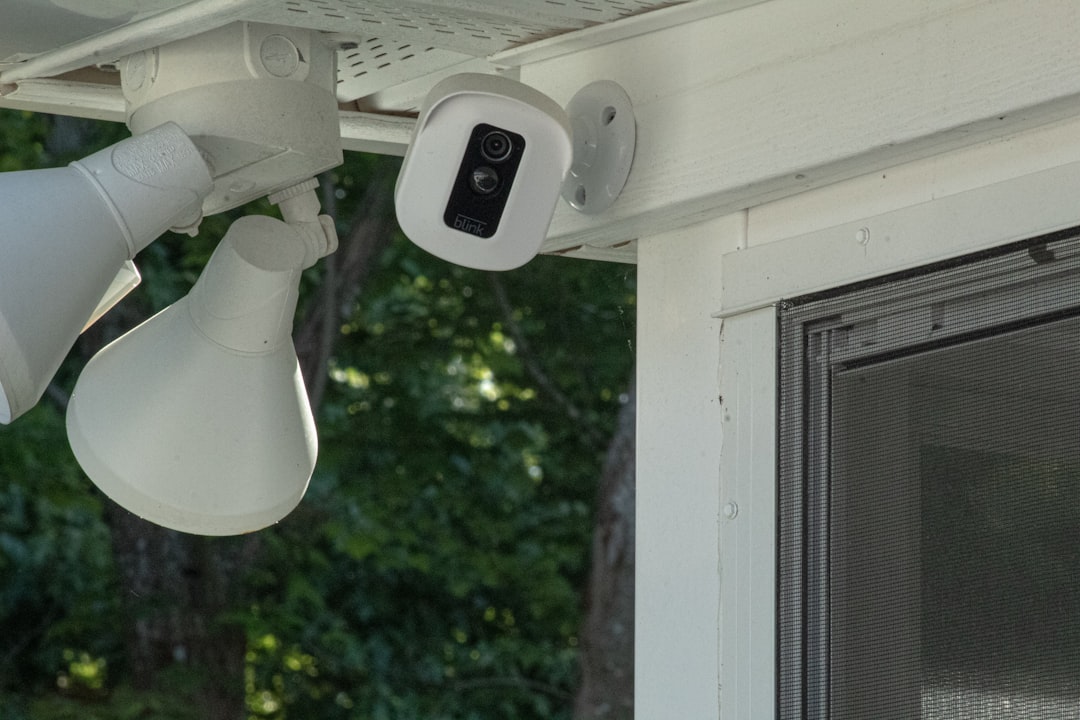
Perform these checks:
- Power cycle the Sync Module
- Check for firmware updates in the app settings
- Remove and re-add affected cameras
Firmware mismatches sometimes cause authorization failures when devices attempt to communicate with updated cloud endpoints.
Step 8: Reinstall and Reauthorize Devices
If all prior steps fail, perform a structured reset process:
- Log out of the Blink app.
- Uninstall the app.
- Restart your phone.
- Reinstall the app from the official store.
- Log in and reauthorize devices if prompted.
This clears persistent tokens and forces a full reauthentication with Blink’s servers.
When to Contact Blink Support
If the error persists after completing all troubleshooting steps, escalate the issue.
Contact Blink Support with:
- Your account email address
- Device model and operating system version
- App version number
- Screenshots of the 403 error
- Date and time the issue began
Support agents can determine whether your account has been flagged for suspicious activity or if backend restrictions are involved.
Preventing Future 403 Errors
While some issues are unavoidable, you can reduce the risk of recurrence by following best practices:
- Keep the Blink app updated
- Avoid excessive failed login attempts
- Maintain stable home internet connectivity
- Do not frequently switch between VPN locations
- Enable two-factor authentication responsibly
Account security policies are designed to protect users. However, unusual login patterns or network irregularities may trigger protective responses from Blink’s systems.
Final Thoughts
Encountering a Blink App 403 Forbidden error does not necessarily indicate account compromise or permanent loss of access. In most cases, the issue stems from credential mismatches, permission misconfigurations, outdated tokens, or network restrictions. By systematically verifying account status, app permissions, network stability, and server health, you can identify and resolve the problem efficiently.
A careful, step-by-step approach is essential. Avoid rushing through repeated login attempts or device resets without diagnosis. Instead, isolate each variable, confirm its integrity, and move sequentially through the troubleshooting process. This disciplined method not only resolves the current issue but also strengthens your understanding of how Blink’s authentication and cloud systems operate.
If the problem ultimately lies outside your control, Blink’s support team can provide deeper server-side insight and restore proper authorization. With the right process, a 403 error is typically a temporary obstacle—not a permanent barrier to access.
