The F1 TV app is a must-have for Formula 1 fans who want live races, onboard cameras, team radios, and exclusive race weekend content at their fingertips. But nothing disrupts race day excitement faster than a sudden error message. One of the most frustrating issues users encounter is Error BM1208. If you’ve seen this code pop up on your screen, don’t worry—this guide will walk you through exactly what it means and how to fix it quickly and effectively.
TL;DR: F1 TV App Error BM1208 usually indicates a playback or connectivity issue tied to your network, device cache, or outdated app software. Most users can resolve it by restarting their device, checking their internet connection, clearing the app cache, or reinstalling the app. In some cases, VPN conflicts or regional restrictions may also trigger the error. Follow the step-by-step solutions below to get back to streaming as quickly as possible.
What Is F1 TV Error BM1208?
Error BM1208 is a playback-related error that typically appears when the app fails to load or stream video content. It may show up:
- When attempting to start a live session
- During race replays
- While switching between onboard cameras
- Immediately after launching the app
The issue is most commonly associated with:
- Internet connectivity problems
- Corrupted app cache or data
- Outdated app versions
- VPN or DNS conflicts
- Temporary server-side disruptions
Understanding the underlying cause is the first step toward resolving it efficiently.
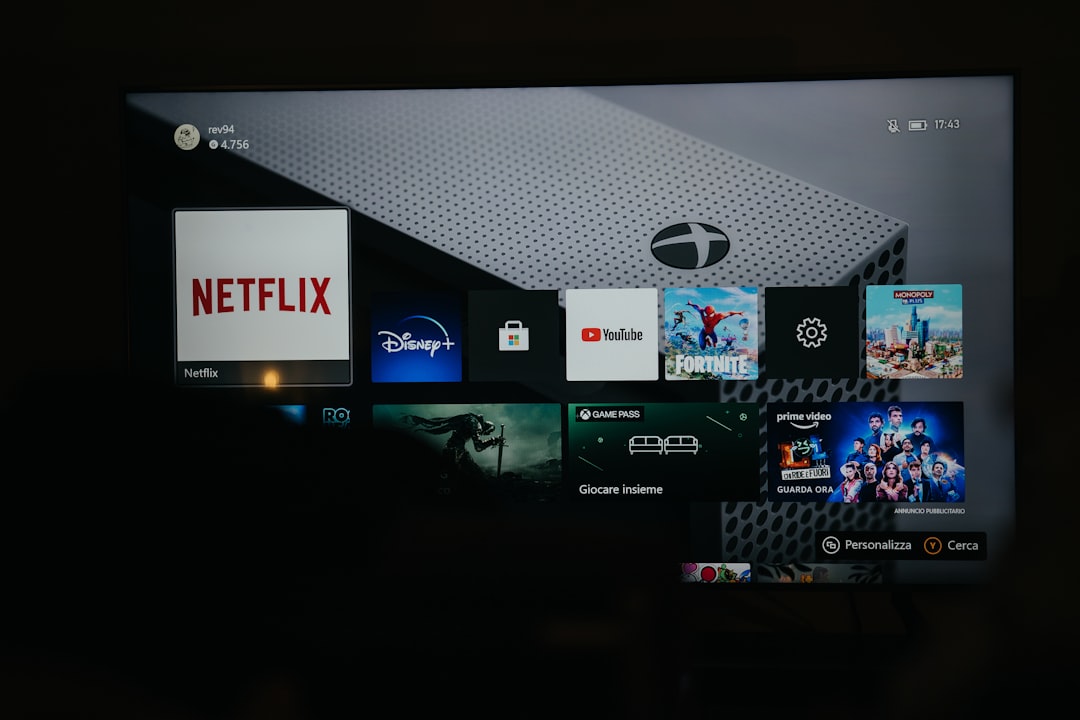
Step 1: Check F1 TV Server Status
Before diving into device troubleshooting, confirm whether the problem is on your end. During race weekends, especially high-profile events, F1 TV servers can experience heavy traffic.
How to check:
- Visit F1 TV’s official social media channels for outage announcements
- Check online outage trackers
- See if other users are reporting similar issues
If there’s a widespread outage, your only option may be to wait until the service stabilizes.
Step 2: Restart Your Device
It may sound simple, but restarting your device resolves a surprisingly high percentage of streaming issues.
Why this works:
- Clears temporary memory files
- Resets background processes
- Refreshes network connections
Whether you’re using:
- Smart TV
- Roku
- Apple TV
- Android or iOS device
- Web browser
Fully power down, wait 30–60 seconds, and restart before testing the stream again.
Step 3: Verify Your Internet Connection
Error BM1208 frequently points to unstable or insufficient bandwidth. F1 TV requires a consistent and reasonably fast internet connection for high-definition streaming.
Recommended minimum speeds:
- SD Streaming: 5 Mbps
- HD Streaming: 10 Mbps
- Multiple onboard feeds: 15–20 Mbps
Quick troubleshooting tips:
- Run a speed test
- Restart your modem and router
- Switch from Wi-Fi to wired Ethernet if possible
- Move closer to your router
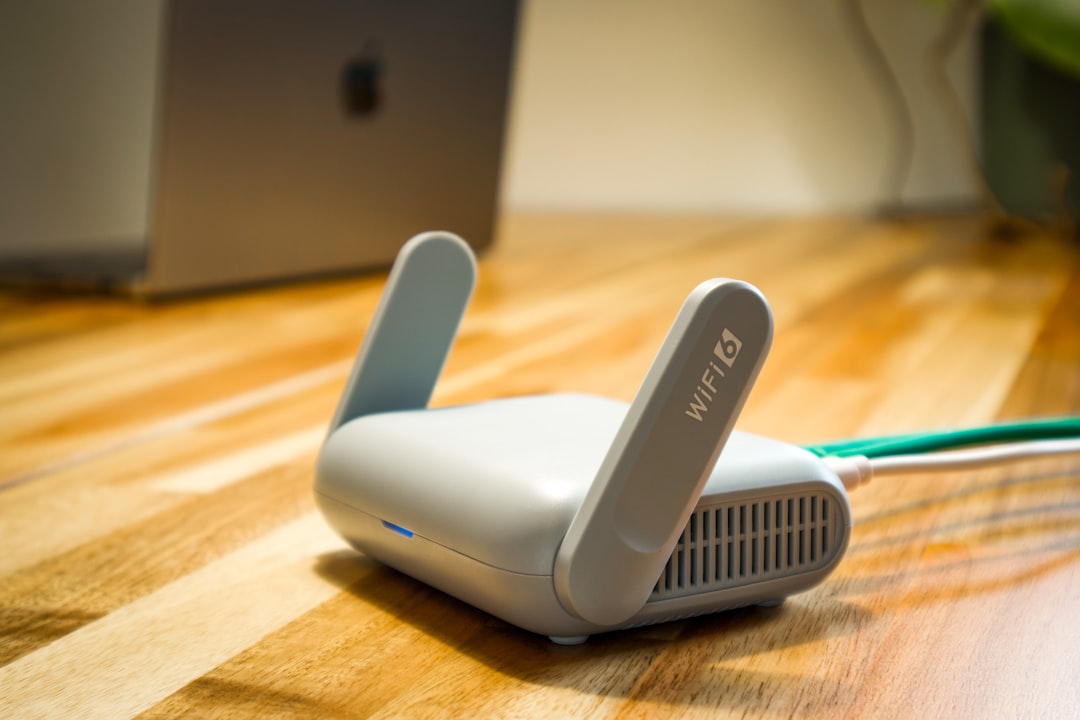
If your speeds are inconsistent, consider limiting other devices that may be consuming bandwidth during the race.
Step 4: Clear App Cache and Data
Over time, cached data can become corrupted and interfere with playback.
On Android Devices:
- Go to Settings
- Select Apps
- Tap F1 TV
- Choose Storage
- Tap Clear Cache
If that doesn’t work, try Clear Data (note: you’ll need to log in again).
On iOS Devices:
Apple doesn’t allow direct cache clearing. Instead:
- Uninstall the app
- Restart your device
- Reinstall F1 TV from the App Store
On Smart TVs and Streaming Sticks:
Most platforms require uninstalling and reinstalling the app to clear stored data.
Step 5: Update the F1 TV App
An outdated app version can cause compatibility problems with current streams.
Check your device’s app store for available updates:
- Google Play Store
- Apple App Store
- Roku Channel Store
- Amazon Appstore
- Samsung or LG Smart TV app marketplace
Enable automatic updates whenever possible to avoid similar issues in the future.
Step 6: Disable VPN or Smart DNS Services
F1 TV enforces regional broadcasting rights. If you’re using a VPN or Smart DNS service, it may trigger Error BM1208.
Try this:
- Disable your VPN
- Turn off Smart DNS settings
- Switch back to your default ISP connection
After disabling, restart the app and test the stream again.
Important: F1 TV Pro availability varies by country, so ensure you are physically located in a supported region.
Step 7: Try a Different Device
If the error persists, test your F1 TV account on another device:
- Try streaming from your smartphone
- Log in via a web browser
- Use a different smart TV
This helps determine whether the problem is device-specific or account-related.
Step 8: Log Out and Back In
Authentication glitches can occasionally trigger playback errors.
To refresh your session:
- Open the F1 TV app
- Log out of your account
- Close the app completely
- Reopen and log back in
This re-establishes your session credentials and may clear the error instantly.
Step 9: Check HDMI Cables and Display Settings
This step mainly applies to smart TVs and external streaming devices.
Loose cables or incorrect display settings can sometimes create handshake issues that interfere with playback.
Make sure:
- HDMI cables are securely connected
- You’re using high-speed HDMI cables
- Your TV firmware is updated
Step 10: Contact F1 TV Support
If none of the above solutions resolve Error BM1208, it’s time to contact official support.
Be prepared to provide:
- Your device type and model
- Your OS version
- App version number
- Internet provider
- Country of access
- A screenshot of the error
The more detailed your information, the faster the issue can be escalated.
Preventing Error BM1208 in the Future
Once you’ve fixed the issue, take these preventive steps to minimize the chances of seeing it again:
- Keep your app and devices updated
- Use a wired internet connection when possible
- Restart your router before major race events
- Avoid launching multiple high-bandwidth streams simultaneously
- Disable VPN services before streaming
Proactively preparing before lights out on Sunday can save you from unnecessary stress when the race begins.
Why Does BM1208 Happen Most Often on Race Day?
You may notice the error appears more frequently during live Grand Prix sessions than during archived replays. That’s because live streaming demands:
- Consistent real-time data delivery
- Higher bandwidth stability
- Lower latency tolerance
Even minor connection interruptions can cause playback authentication to fail temporarily. Replays, on the other hand, are often less server-intensive.
This doesn’t always mean F1 TV servers are failing—it often comes down to home network fluctuations.
Final Thoughts
Error BM1208 can feel like a disaster when it interrupts qualifying or the final laps of a Grand Prix. Fortunately, in most cases, the solution is straightforward. Whether it’s clearing your cache, updating the app, or stabilizing your internet connection, these troubleshooting steps address the most common causes.
The key is to work methodically: start with basic resets and connectivity checks, then move toward app-specific and regional considerations. With a little patience, you’ll be back to watching lights go out and engines roar in no time.
After all, no Formula 1 fan should miss the action because of a fixable streaming glitch.
