Imagine this: You’re sipping your morning coffee, feeling proud about your slick eCommerce setup. Your automated cart abandonment emails have been working like a charm. Sales are trickling in even when customers forget to check out. But suddenly—bam!—they stop working after a platform update. Panic mode activated, right?
TL;DR (Too Long, Didn’t Read)
Your cart abandonment emails probably stopped working due to changes in settings or API connections from the platform update. Check your email automation triggers, contact syncing, and integrations first. You’ll often need to reauthorize connections or tweak configurations. Don’t worry—it’s usually fixable without a full meltdown!
Why Did This Happen?
The root cause is usually one of three things:
- Changes in API connections – Your email service and eCommerce platform might not be “talking” correctly anymore.
- Automation trigger failures – The rules that detect when a customer leaves their cart are broken or disabled.
- Permission shifts – A platform update can reset or change data-sharing permissions.
Basically, the bridge between your store and your email service got wobbly or completely collapsed. Now it’s time to rebuild it.
Step 1: Don’t Panic (Seriously)
Yes, your revenue dips might look scary right now. But this is fixable. Keep calm, and grab another coffee. We’re diving in.
Step 2: Confirm the Problem
First, let’s double check that the cart abandonment emails aren’t sending. Ask yourself:
- Have you tried a test cart to see if the email is triggered?
- Is email delivery still working for other types of messages?
- Check your email marketing tool’s logs—are cart emails even being attempted?
If everything else is working but these emails aren’t, it’s a trigger or integration issue—on to the next step!
Step 3: Recheck Integration Settings
Most cart abandonment emails are powered by integrations between your store and an email provider like Mailchimp, Klaviyo, Shopify Email, etc. A platform update can break these links:
Here’s what to do:
- Log into your email service.
- Head to the Integrations or Connected Platforms section.
- Find your store integration—does it show as active?
- If not, reauthorize it. Sometimes you simply need to click a button to reconnect.
- Once done, test again to see if the cart emails are working.
If the integration is there but things still aren’t working, move on to the automation rules.

Step 4: Review Automation Rules and Triggers
After a platform update, automation triggers might stop firing. Here’s what you do:
- Open your email platform and go to Automations.
- Find your cart abandonment flow.
- Check the trigger—usually it’s something like “Customer leaves checkout without purchasing.”
- Make sure this condition is still valid. Platform updates can change how checkouts are tracked.
- If needed, delete and recreate the trigger to ensure it’s catching data correctly.
You might also need to update delays and filters. For example, if emails go out 1 hour after abandonment, make sure that delay was not affected or reset.
Step 5: Double Check Website Tracking
Many platforms rely on cookies or scripts to know when someone adds to cart or leaves.
If a recent update changed your theme or checkout experience, those scripts can vanish. Boom—now your email tool doesn’t know what happened.
Do this:
- Go to your website and open the browser console.
- Look for errors related to tracking scripts.
- Make sure you still have your email provider’s tracking script installed—especially on the product, cart, and checkout pages.
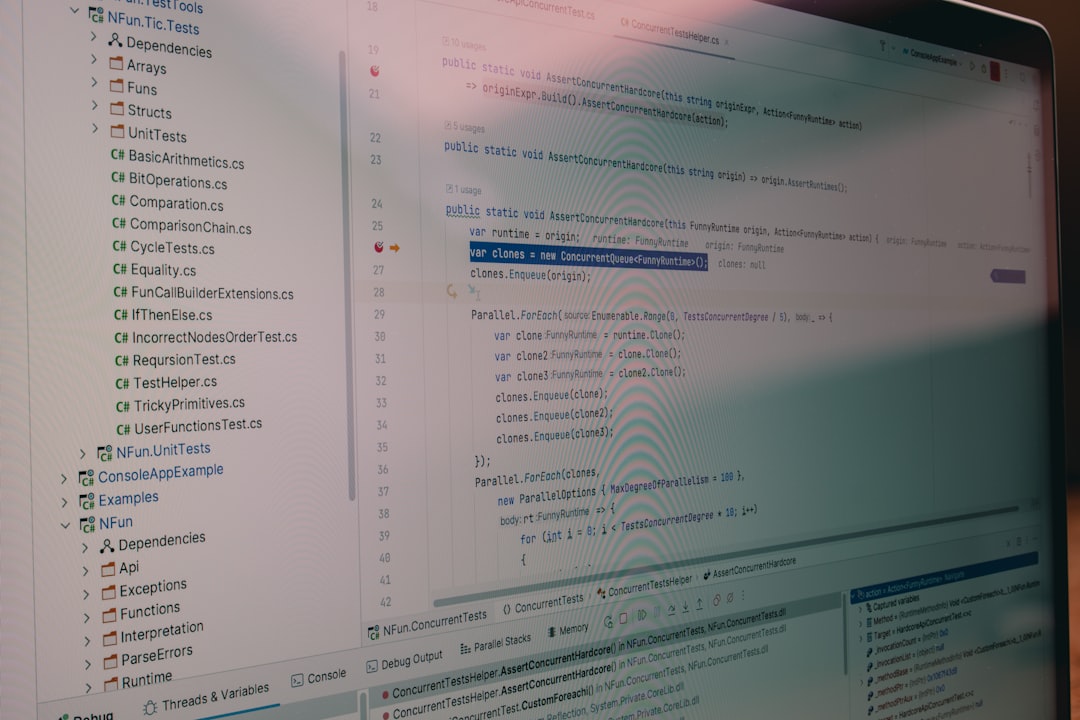
If it’s missing, reinsert the script or fix the installation using your platform’s support docs.
Step 6: Check for Any App Conflicts
Do you use apps or plugins for your store? Some of them change how checkouts or carts work.
Try these steps:
- Note which apps were updated around the time emails stopped.
- Temporarily disable non-essential ones and retest your email triggers.
- Look especially for apps that modify carts, pop-ups, or payment flows.
If the issue resolves after disabling an app, you’ve found the culprit! Contact the app support or email provider for a compatibility fix.
Step 7: Review Your Contact Lists
If your email tool can’t see or collect the contacts drifting away from checkout, it can’t send them emails.
Here are some things that may prevent that:
- Consent tracking: Are cookie popups preventing tracking scripts from working?
- Opt-in requirements: Is your form asking users for email again at checkout?
- Changes to how guest checkouts are handled?
Fix any hiccups in the flow from “user adds item to cart” to “email address collected and stored.”
Step 8: Check Email Sending Limits or Errors
If everything seems to be in place and emails are still not going out, maybe they’re actually queued or blocked.
Open your email platform and check:
- Are there sending limits that were hit recently?
- Have you been flagged for spam or bounce issues?
- Did a plan downgrade turn off automations?
Sometimes it’s not your fault—just a technical hiccup or plan limitation. Contact support if needed.
Step 9: Test, Test, Test!
Once you’ve made changes, always test the flow:
- Use a clean browser or incognito mode.
- Add items to cart, leave at checkout.
- Watch to see if your test email account receives the abandonment message.
Keep tweaking until everything works smoothly again!
Bonus Tips to Prevent This in the Future
- Document your setup – Take screenshots of automations and integrations.
- Create a post-update checklist – Include scripts, triggers, and permission settings.
- Opt for automatic backups – Some email tools let you export flows and rules.
- Subscribe to platform change logs – Updates won’t catch you off guard anymore.
Still Stuck? Call for Backup!
If all else fails, reach out to your email provider’s support or browse the community forums for recent update-related issues.
Chances are, you’re not the only one facing this. Bonus: You might find a step-by-step fix someone else already posted!
Wrapping It All Up
Automated cart abandonment emails are goldmines. But they’re also delicate little creatures that get upset during platform updates.
But hey, now you know:
- How to check triggers, integrations, and tracking scripts.
- How to review and test automations.
- What to do if things go mysteriously silent!
So next time cart emails vanish after an update, take a deep breath, follow these steps, and you’ll be back to recovering sales in no time.
Happy fixing—and even happier selling!
