When the Command+Shift+4 shortcut stops working on macOS, it can immediately disrupt your workflow. For many users, this keyboard combination is the fastest way to capture a selected portion of the screen. Whether you rely on screenshots for work documentation, customer support, development, or personal use, losing this functionality can be frustrating. Fortunately, in most cases, the issue can be resolved quickly with a few targeted troubleshooting steps.
TL;DR: If Command+Shift+4 is not working, the problem is usually caused by incorrect keyboard shortcut settings, background app conflicts, modifier key issues, or system glitches. Start by checking your keyboard shortcut settings and restarting your Mac. Then review third-party app conflicts and modifier key configurations. In more persistent cases, resetting NVRAM or updating macOS typically resolves the issue.
Below are six proven fixes to restore screenshot functionality on macOS.
1. Verify Screenshot Keyboard Shortcut Settings
The most common reason Command+Shift+4 stops working is that the shortcut has been disabled or reassigned in System Settings.
macOS allows users and applications to redefine keyboard shortcuts. A software installation or manual change may have altered the default configuration.
How to check and restore the shortcut:
- Open System Settings (or System Preferences on older macOS versions).
- Go to Keyboard.
- Select Keyboard Shortcuts.
- Click on Screenshots in the sidebar.
- Ensure that “Save picture of selected area as a file” is enabled.
- Confirm the shortcut is set to Command + Shift + 4.
If it has been changed or disabled, re-enable it or restore the original combination.
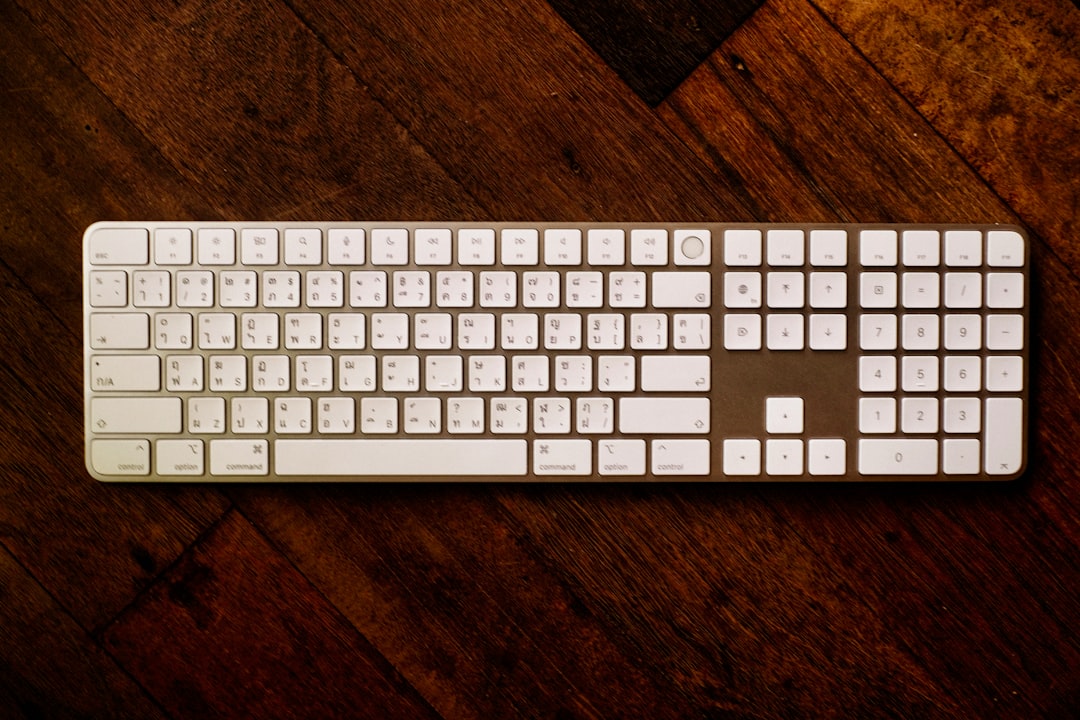
Pro Tip: If another action is using the same key combination, macOS may override the screenshot command. Remove conflicting shortcuts if necessary.
2. Restart Your Mac
This may sound simple, but temporary system glitches often interfere with keyboard inputs and background services.
macOS runs multiple processes to manage keyboard events, screenshots, and file-saving operations. If one of these services becomes unresponsive, shortcuts like Command+Shift+4 may fail silently.
Steps:
- Click the Apple menu.
- Select Restart.
- Wait for your Mac to fully reboot.
A restart refreshes system-level processes and clears temporary conflicts. In many cases, this alone restores the screenshot function.
3. Check for Third-Party App Conflicts
Screenshot utilities, screen recording tools, clipboard managers, and productivity apps often override macOS default shortcuts.
Common types of apps that interfere include:
- Screen capture tools
- Remote desktop software
- Virtual machine applications
- Advanced keyboard remapping utilities
- Clipboard history managers
If Command+Shift+4 stopped working after installing new software, that application could be intercepting the keyboard input.
How to identify a conflict:
- Quit recently installed applications.
- Test the shortcut again.
- If it works, reopen apps one by one to find the culprit.
You can also check shortcut settings within the third-party app and disable or reassign its keyboard command.
Advanced Tip: Boot into Safe Mode to confirm whether third-party software is responsible. If the shortcut works in Safe Mode, a non-system app is causing the conflict.
4. Inspect Modifier Keys and Keyboard Hardware
Command+Shift+4 relies on three keys functioning correctly: Command, Shift, and the number 4. If one key is not registering properly, the shortcut will fail.
Things to check:
- Test each key individually in a text document.
- Ensure Shift produces uppercase letters.
- Confirm Command activates menu shortcuts (such as Command+C).
- Verify the “4” key types correctly.
You should also review modifier key settings:
- Open System Settings.
- Go to Keyboard.
- Select Modifier Keys.
- Ensure Command and Shift are assigned correctly.
If you use an external keyboard, disconnect it and test with the built-in keyboard (or vice versa). Physical damage, debris, or liquid exposure may cause individual keys to malfunction.
Important: If multiple shortcuts are failing, you may be dealing with a broader hardware issue rather than a screenshot-specific problem.
5. Reset NVRAM (Intel Macs Only)
On Intel-based Macs, system settings such as keyboard behavior, resolution preferences, and startup parameters are stored in NVRAM (Non-Volatile Random-Access Memory).
If this data becomes corrupted, keyboard shortcuts can behave unpredictably.
To reset NVRAM:
- Shut down your Mac.
- Turn it back on and immediately press and hold:
- Option
- Command
- P
- R
- Hold for about 20 seconds, then release.
M1, M2, and later Apple Silicon Macs automatically manage NVRAM during startup and do not require manual resetting.
After rebooting, test Command+Shift+4 again.
6. Update macOS to the Latest Version
If none of the above solutions work, a system bug may be responsible. Apple regularly releases updates that address keyboard input problems and performance issues.
To check for updates:
- Open System Settings.
- Go to General.
- Select Software Update.
- Install any available updates.
After updating, restart your Mac and test the screenshot function again.
Note: If the problem appeared immediately after a macOS update, monitor Apple’s support channels for known issues or patches.
What If Screenshots Are Being Taken But Not Saved?
Sometimes Command+Shift+4 appears not to work, but the screenshot is simply being saved to an unexpected location.
By default, screenshots are saved to the Desktop. However, this location can be changed.
To verify the save location:
- Press Command + Shift + 5.
- Click Options.
- Check the selected save destination.
If the Desktop is cluttered or synced with cloud storage, permission issues may also block image saving.
Quick Comparison: Symptoms and Solutions
| Symptom | Likely Cause | Recommended Fix |
|---|---|---|
| No response when pressing shortcut | Disabled or reassigned shortcut | Check Keyboard Shortcuts settings |
| Shortcut worked before installing new app | App conflict | Disable or reconfigure third-party app |
| Only some keys not responding | Keyboard hardware issue | Test keys or switch keyboard |
| Screenshots not appearing on Desktop | Save location changed | Verify via Command+Shift+5 options |
| Multiple shortcuts malfunctioning | System glitch | Restart Mac or reset NVRAM |
| Issue after macOS update | Software bug | Install latest system patch |
When to Contact Apple Support
If you have:
- Tested all six fixes
- Confirmed no shortcut conflicts
- Updated macOS
- Verified keyboard hardware integrity
and the problem persists, it may indicate a deeper system issue or hardware malfunction.
Seek professional support if:
- The keyboard fails across multiple applications
- Other system-level shortcuts are unresponsive
- Physical keyboard damage is present
- You suspect logic board or internal hardware failure
In business or enterprise environments, IT administrators should also verify management profiles that may restrict screenshot permissions for compliance or security reasons.
Final Thoughts
The Command+Shift+4 shortcut is a core macOS productivity feature. When it stops working, the disruption can feel significant—but in most cases, the fix is straightforward.
Begin with the simplest solutions: verify shortcut settings and restart your Mac. Then move methodically through potential app conflicts, keyboard inspection, and system resets. Only in rare cases does the issue require advanced troubleshooting or professional service.
By applying these six practical solutions, you can restore screenshot functionality quickly and maintain the efficiency and reliability you expect from macOS.
