Is your computer’s fan spinning like it’s about to take off? Does Task Manager show Microsoft Compatibility Telemetry eating up your CPU? You’re not alone. Many Windows users notice this process using more resources than expected. The good news? You can fix it. And it’s easier than you think.
TLDR: Microsoft Compatibility Telemetry collects system data to improve Windows, but it can sometimes cause high CPU usage. You can fix this by disabling certain services, adjusting Task Scheduler settings, editing Group Policy, or tweaking the Registry. Cleaning temporary files and updating Windows can also help. Follow the simple steps below to calm your CPU and speed things up.
What Is Microsoft Compatibility Telemetry?
Microsoft Compatibility Telemetry (also called CompatTelRunner.exe) is a built-in Windows process. Its job is simple. It collects performance and usage data. Then it sends that data to Microsoft.
Why? To improve Windows. It helps Microsoft fix bugs, improve updates, and enhance performance.
Sounds helpful, right? It is. But sometimes it uses too much CPU power. Especially during updates. Or on older machines.
When that happens, your system slows down. Apps freeze. Fans get loud. And frustration begins.
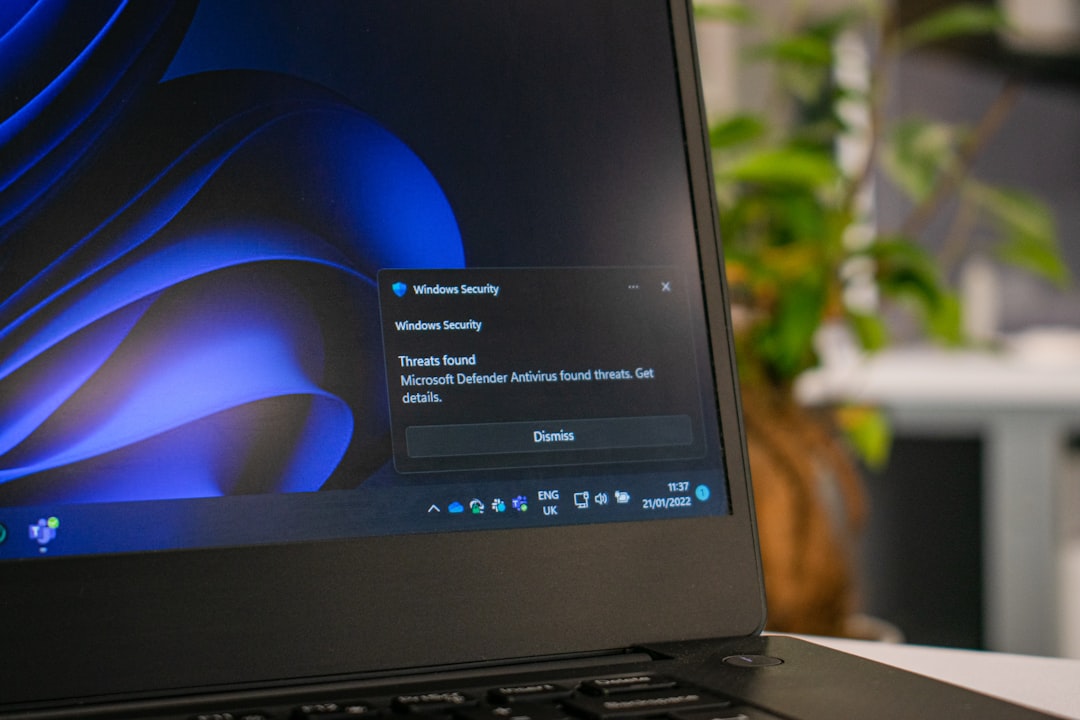
Why Is It Using So Much CPU?
High CPU usage usually happens because:
- A Windows update is running in the background.
- Corrupted system files exist.
- Telemetry scans large amounts of data.
- Your system is low on memory.
- Temporary files are overloaded.
Now let’s fix it.
Method 1: Disable Telemetry via Services
This is one of the easiest fixes.
- Press Win + R.
- Type services.msc and hit Enter.
- Scroll down to Connected User Experiences and Telemetry.
- Right-click it.
- Select Properties.
- Set Startup type to Disabled.
- Click Stop.
- Press Apply, then OK.
Restart your computer.
Check Task Manager again. CPU usage should drop.
Also Disable dmwappushsvc
While you’re there:
- Find dmwappushsvc.
- Right-click and open Properties.
- Set it to Disabled.
These two services are linked to telemetry.
Method 2: Use Task Scheduler
Windows schedules telemetry tasks automatically.
You can turn them off.
- Press Win + R.
- Type taskschd.msc.
- Hit Enter.
Now follow this path:
Task Scheduler Library → Microsoft → Windows → Application Experience
Look for these tasks:
- Microsoft Compatibility Appraiser
- ProgramDataUpdater
- StartupAppTask
Right-click each one.
Select Disable.
Done.
Image not found in postmetaMethod 3: Turn Off Telemetry via Group Policy (Pro Versions)
If you’re using Windows Pro or Enterprise, this method works great.
- Press Win + R.
- Type gpedit.msc.
- Press Enter.
Navigate to:
Computer Configuration → Administrative Templates → Windows Components → Data Collection and Preview Builds
Find Allow Telemetry.
Double-click it.
Select Disabled.
Click Apply and OK.
Restart your system.
This reduces data collection significantly.
Method 4: Use Registry Editor (Home Version Fix)
Using Windows Home? Don’t worry.
You can use the Registry instead.
Warning: Be careful in Registry Editor. Follow steps exactly.
- Press Win + R.
- Type regedit.
- Press Enter.
Navigate to:
HKEY_LOCAL_MACHINE\SOFTWARE\Policies\Microsoft\Windows\DataCollection
If DataCollection does not exist, create it.
- Right-click Windows.
- Click New → Key.
- Name it DataCollection.
Inside it:
- Right-click empty space.
- Select New → DWORD (32-bit) Value.
- Name it AllowTelemetry.
- Set value to 0.
Click OK.
Restart your computer.
Method 5: Run SFC and DISM Scans
Corrupted files can cause high CPU usage.
Let’s repair them.
- Search for Command Prompt.
- Right-click it.
- Select Run as Administrator.
Type this:
sfc /scannow
Press Enter.
Wait until it finishes.
Then type:
DISM /Online /Cleanup-Image /RestoreHealth
Press Enter again.
This may take some time. Be patient.
Restart afterward.
Method 6: Delete Temporary Files
Too many junk files? They can stress your system.
Here’s how to clean them:
- Press Win + R.
- Type %temp%.
- Press Enter.
- Delete all files in that folder.
Next:
- Press Win + R.
- Type cleanmgr.
- Select your system drive.
- Check all boxes.
- Click OK.
Simple cleanup. Big difference.
Method 7: Update Windows
Sometimes the issue is just a bug.
Microsoft may have already fixed it.
To check:
- Go to Settings.
- Click Windows Update.
- Select Check for updates.
Install any pending updates.
Restart your PC.
This step is often overlooked.
Method 8: Perform a Clean Boot
Other programs can clash with telemetry.
A clean boot helps identify that.
- Press Win + R.
- Type msconfig.
- Press Enter.
In the Services tab:
- Check Hide all Microsoft services.
- Click Disable all.
Go to Startup tab.
Click Open Task Manager.
Disable all startup programs.
Restart your computer.
If CPU usage drops, one of those programs was the cause.
Should You Disable Telemetry Completely?
That depends.
Pros of disabling it:
- Lower CPU usage
- Improved performance
- Better privacy
Cons:
- Less diagnostic data for updates
- Possible update compatibility issues
For most home users, disabling it is fine.
For business environments? Test first.
Extra Tips to Reduce CPU Usage
Here are bonus ways to keep your system fast:
- Upgrade your RAM.
- Switch to an SSD.
- Limit startup apps.
- Uninstall unused programs.
- Scan for malware.
Performance is a team effort. Not just one fix.
How to Check If the Fix Worked
Open Task Manager.
Click the Processes tab.
Find Microsoft Compatibility Telemetry.
Look at the CPU column.
If it stays under 5%, you’re good.
If it spikes occasionally, that’s normal.
Constant 30%+ usage? Revisit the steps.
Final Thoughts
Microsoft Compatibility Telemetry is not malware. It’s a legitimate Windows feature. But sometimes it gets a little too enthusiastic.
The good news? You’re in control.
With a few simple tweaks, you can:
- Cool down your CPU.
- Speed up your PC.
- Reduce background activity.
No advanced tech skills needed.
Just follow the steps. One by one.
Your PC should feel smoother. Quieter. Faster.
And that noisy fan? Finally at peace.
