Sideloading apps is awesome. Until they suddenly stop working. If you use Sideloadly, you have probably seen the dreaded “app needs to be re-signed” message. Annoying, right? The good news is this: Auto Refresh in Sideloadly can save you time, stress, and lots of manual clicking.
Let’s make this simple and fun. By the end of this guide, you’ll know exactly how Auto Refresh works and how to turn it on.
TLDR: Auto Refresh in Sideloadly automatically re-signs and refreshes your sideloaded apps before they expire. This prevents apps from crashing after 7 days (or 365 days with a paid Apple Developer account). To enable it, you need Wi-Fi sync, correct Apple ID settings, and background refresh configured in Sideloadly. Once set up, it works quietly in the background.
What Is Auto Refresh in Sideloadly?
When you sideload apps using a free Apple ID, they expire after 7 days. With a paid developer account, they last 365 days.
After expiration, the app won’t open. It crashes instantly. Poof. Gone.
This happens because Apple requires apps to be signed with a valid certificate. When that certificate expires, the app becomes unusable.
Auto Refresh fixes this.
It automatically re-signs your apps before they expire. No manual reinstall needed. No cables every week. No panic.
Image not found in postmetaWhy You Should Enable Auto Refresh
If you don’t enable it, you must:
- Open Sideloadly manually
- Reconnect your iPhone or iPad
- Re-enter your Apple ID (sometimes)
- Reinstall the app
Every. Single. Week.
With Auto Refresh:
- Your apps stay active
- You save time
- You avoid expiration surprises
- You stress less
It’s basically on autopilot.
What You Need Before Enabling Auto Refresh
Before we jump into the steps, make sure you have the basics ready.
1. Latest Version of Sideloadly
Always update first. Older versions may not support full auto refresh functionality.
2. iTunes and iCloud Installed (Windows Only)
If you’re on Windows, these must be installed from Apple’s website. Not the Microsoft Store versions.
3. Wi-Fi Sync Enabled
This is very important. Your device must sync over Wi-Fi so Sideloadly can refresh apps without a cable.
4. Same Wi-Fi Network
Your computer and iPhone must be on the same network.
Step-by-Step: How to Enable Auto Refresh in Sideloadly
Let’s break this down into easy steps.
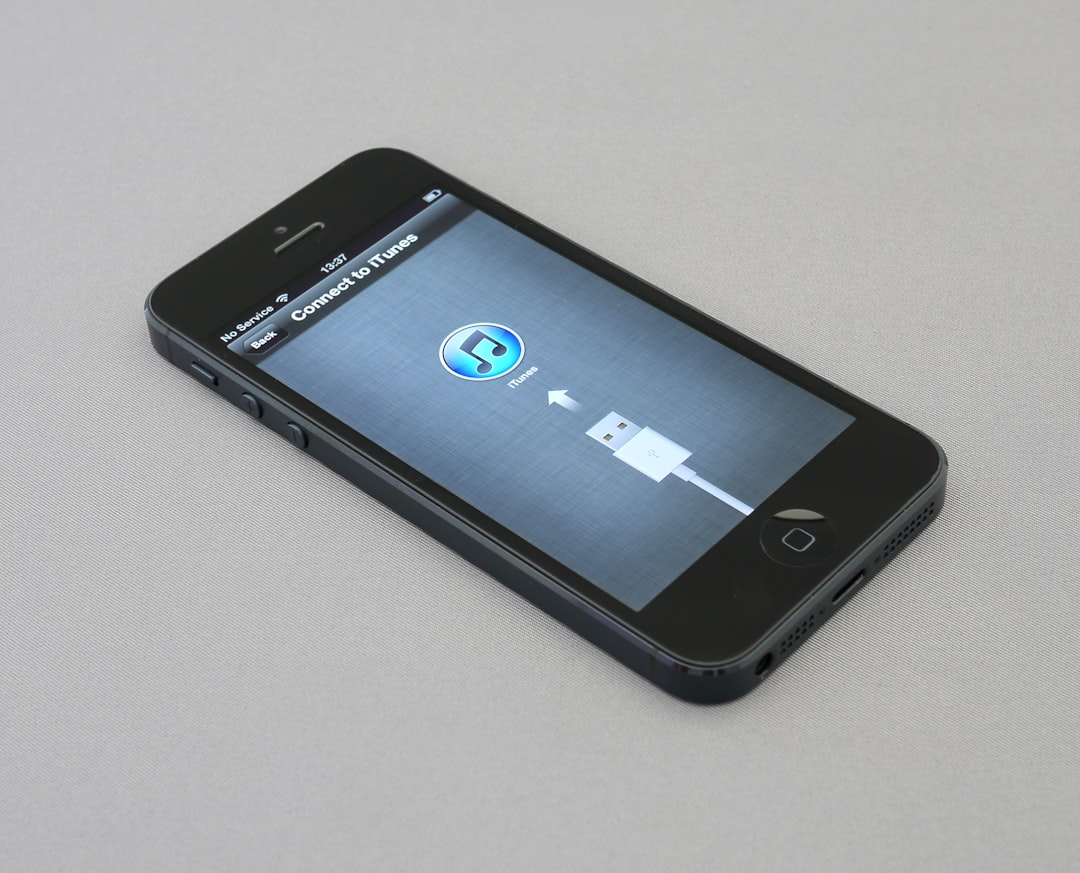
Step 1: Connect Your Device
Plug your iPhone or iPad into your computer using a cable.
Open:
- Finder (on macOS Catalina or newer)
- iTunes (on Windows or older macOS)
Select your device.
Enable:
- Sync with this device over Wi-Fi
Click Apply.
This allows your device to communicate wirelessly later.
Step 2: Open Sideloadly
Launch Sideloadly on your computer.
Connect your device one more time with the cable (just for initial setup).
Make sure your device appears in the device selection dropdown.
If it doesn’t:
- Unlock your phone
- Tap “Trust This Computer”
- Restart Sideloadly
Step 3: Install an App Normally First
Before Auto Refresh works, you need at least one app installed through Sideloadly.
To do that:
- Drag and drop your IPA file into Sideloadly
- Enter your Apple ID
- Click Start
Wait for installation to finish.
Now the magic can happen.
Step 4: Enable Auto Refresh Option
Inside Sideloadly, look for settings related to automatic refresh or daemon services.
Enable:
- Automatic App Refresh
- Background refresh services (if available)
This allows Sideloadly to monitor expiration dates.
When an app is about to expire, it silently re-signs it.
No extra clicks needed from you.
Step 5: Keep Sideloadly Running in Background
For Auto Refresh to work, Sideloadly must be able to run.
That means:
- Do not uninstall it
- Allow it through firewall if prompted
- Keep background services enabled
You don’t need to keep the window open. But its helper services must be allowed.
How Auto Refresh Actually Works
Let’s simplify the technical stuff.
Here’s what happens behind the scenes:
- Sideloadly tracks app expiration dates
- It scans your device over Wi-Fi
- Before the 7-day limit hits, it re-signs the app
- The new certificate replaces the old one
All while you’re probably watching Netflix.
Pretty cool, right?

Common Problems and Quick Fixes
Sometimes Auto Refresh doesn’t work immediately. Don’t worry. Here are quick fixes.
Problem: Device Not Detected Over Wi-Fi
- Make sure Wi-Fi sync is enabled
- Both devices on same network
- Restart router
- Restart iPhone and computer
Problem: App Still Expired
- Open Sideloadly manually once
- Reconnect with cable
- Reinstall app
- Check Apple ID login
Problem: Apple ID Errors
- Use an app-specific password
- Enable two-factor authentication
- Try logging out and back in
Free vs Paid Apple Developer Account
Auto Refresh works for both. But the experience is different.
| Feature | Free Apple ID | Paid Developer Account |
|---|---|---|
| App Expiration | 7 Days | 365 Days |
| Manual Refresh Needed | Weekly (if no Auto Refresh) | Rarely |
| Auto Refresh Benefit | Very High | Moderate |
| Cost | Free | Annual Fee |
If you use a free account, Auto Refresh is almost essential.
If you use a paid account, it’s still helpful. But less urgent.
Pro Tips for Smooth Auto Refresh
- Keep your computer on regularly
- Do not change Apple ID password frequently
- Avoid uninstalling and reinstalling Sideloadly often
- Check for updates monthly
- Keep your device charged during refresh periods
Think of Sideloadly as a tiny app guardian. It protects your sideloaded apps from expiring.
Is Auto Refresh Safe?
Yes. It simply re-signs apps using your Apple developer credentials.
However:
- Only use trusted IPA files
- Protect your Apple ID
- Use strong passwords
Sideloading itself carries responsibility. Always be careful what you install.
How to Check If Auto Refresh Is Working
Want peace of mind?
Do this:
- Open Sideloadly
- Check app expiration dates
- Monitor refresh logs
If expiration extends automatically before day 7, you’re good.
No crashes = success.
Final Thoughts
Enabling Auto Refresh in Sideloadly is one of the smartest things you can do if you sideload apps regularly.
It saves time.
It prevents frustration.
It keeps everything smooth.
The setup takes only a few minutes. After that, it feels like magic.
No more weekly reinstall rituals.
No more “Why isn’t this app opening?”
Just working apps. Every time.
Take five minutes today. Set up Auto Refresh. Future you will be grateful.
