Use Adobe Acrobat if you need reliable PDF markup across teams, forms, signatures, and Windows or Mac. Use Preview if you are on a Mac and need fast, free drawing for quick notes, circles, arrows, and signatures. Both can draw on a PDF, but they feel very different once you start marking up real work files.
TLDR: Adobe Acrobat is better for professional annotation, shared reviews, and files that must behave the same on different devices. Preview is faster for simple Mac-only markup and costs nothing. For example, a student reviewing a 20-page lecture PDF can highlight, sketch, and add notes in Preview in under 5 minutes, while a legal team marking 40 contract changes will save headaches with Acrobat’s comment tools and review tracking. If you annotate PDFs weekly, Acrobat is usually worth it; if you do it twice a month, Preview may be enough.
Adobe Acrobat vs Preview: the quick choice
If your PDF workflow includes coworkers, clients, approvals, or archived records, choose Adobe Acrobat. Its drawing and commenting tools are made for repeat use. You can add freehand ink, sticky notes, shapes, stamps, callouts, signatures, and tracked comments.
If you only need to scribble a note, circle a typo, or sign a form on a Mac, Preview is pleasantly simple. It opens instantly because it is built into macOS. No account. No subscription screen. No “please update before you can breathe” feeling.

How to draw on a PDF in Adobe Acrobat
Adobe Acrobat gives you several ways to draw, depending on whether you use the free Reader or paid Acrobat Pro. The basic drawing tools are available in the commenting area.
- Open your PDF in Adobe Acrobat.
- Select Comment from the tools panel.
- Choose the Draw freehand tool, often shown as a pencil icon.
- Pick a color and line thickness.
- Draw directly on the PDF page.
- Use shapes, arrows, text boxes, or sticky notes if freehand drawing is too messy.
- Save the file, or share it with comments attached.
The freehand tool is useful for quick circles, check marks, margin sketches, and handwritten notes. Acrobat also lets you edit or delete many annotations after placing them. That matters. A sloppy red circle should not ruin a polished file.
Where Acrobat wins: it treats annotations as comments. That means other people can reply, filter, accept, reject, or review them. If five people are marking a proposal, this is a big deal. Preview can mark up the file, but it is not built for comment management at the same level.
How to draw on a PDF in Preview on Mac
Preview is the quiet hero of macOS. It is not flashy, but it handles everyday PDF markup surprisingly well.
- Open the PDF in Preview.
- Click the Markup button. It looks like a pen tip inside a circle.
- Select the Sketch or Draw tool.
- Use your mouse, trackpad, or Apple Pencil if you are using Sidecar or a compatible setup.
- Change line color, thickness, or style from the toolbar.
- Add shapes, arrows, text, highlights, or signatures as needed.
- Save the PDF.
Preview’s sketch tool is smart in a small way. If you draw a rough circle, triangle, or arrow, it may offer to convert it into a clean shape. That can make messy trackpad drawing look much better. Honestly, it feels like Preview understands that most of us are not surgeons with a mouse.
The weak spot is consistency. If a file has complex layers, form fields, security settings, or comments from other software, Preview may flatten or alter parts of it when saved. Expect to waste time on this if you pass documents back and forth with Acrobat users.
Drawing tools: what each app does best
- Freehand drawing: Both apps support it. Acrobat gives better document control. Preview feels quicker.
- Shapes and arrows: Both are good. Preview is easier for casual use. Acrobat is better for formal review.
- Text comments: Acrobat is stronger because comments can be organized and tracked.
- Highlighting: Both work well, but Acrobat handles large review projects better.
- Signatures: Both let you sign. Acrobat offers more business-grade signing options.
- Collaboration: Acrobat wins by a wide margin.
- Cost: Preview wins because it is free with macOS.

When Adobe Acrobat is the better choice
Pick Acrobat if your PDF is part of a serious workflow. That includes contracts, invoices, forms, technical drawings, client proofs, and HR documents.
Acrobat is especially useful when you need to:
- Send comments to multiple reviewers and keep replies attached to the right markup.
- Protect the original document while adding visible notes on top.
- Work across Windows and Mac without worrying about compatibility.
- Use stamps such as “Approved,” “Reviewed,” or “Confidential.”
- Prepare fillable forms or handle e-signature steps.
It drives me crazy that Acrobat can feel heavier than it should for a simple doodle. Opening tools and panels may take longer than Preview, especially on older machines. Still, that extra structure pays off when the file matters and mistakes are expensive.
When Preview is the better choice
Preview is the better choice when speed matters more than process. If you receive a PDF, need to circle three errors, add a note, and send it back, Preview is perfect.
Use Preview for:
- Homework review and study notes.
- Quick signatures on simple forms.
- Personal document markup, such as receipts or travel plans.
- Fast visual feedback on screenshots saved as PDFs.
- Mac-only workflows where everyone uses Preview or basic PDF viewers.
The best part is the low friction. Open file. Click Markup. Draw. Save. Done. There is no learning curve worth worrying about.
Accuracy: mouse, trackpad, stylus, and touchscreen
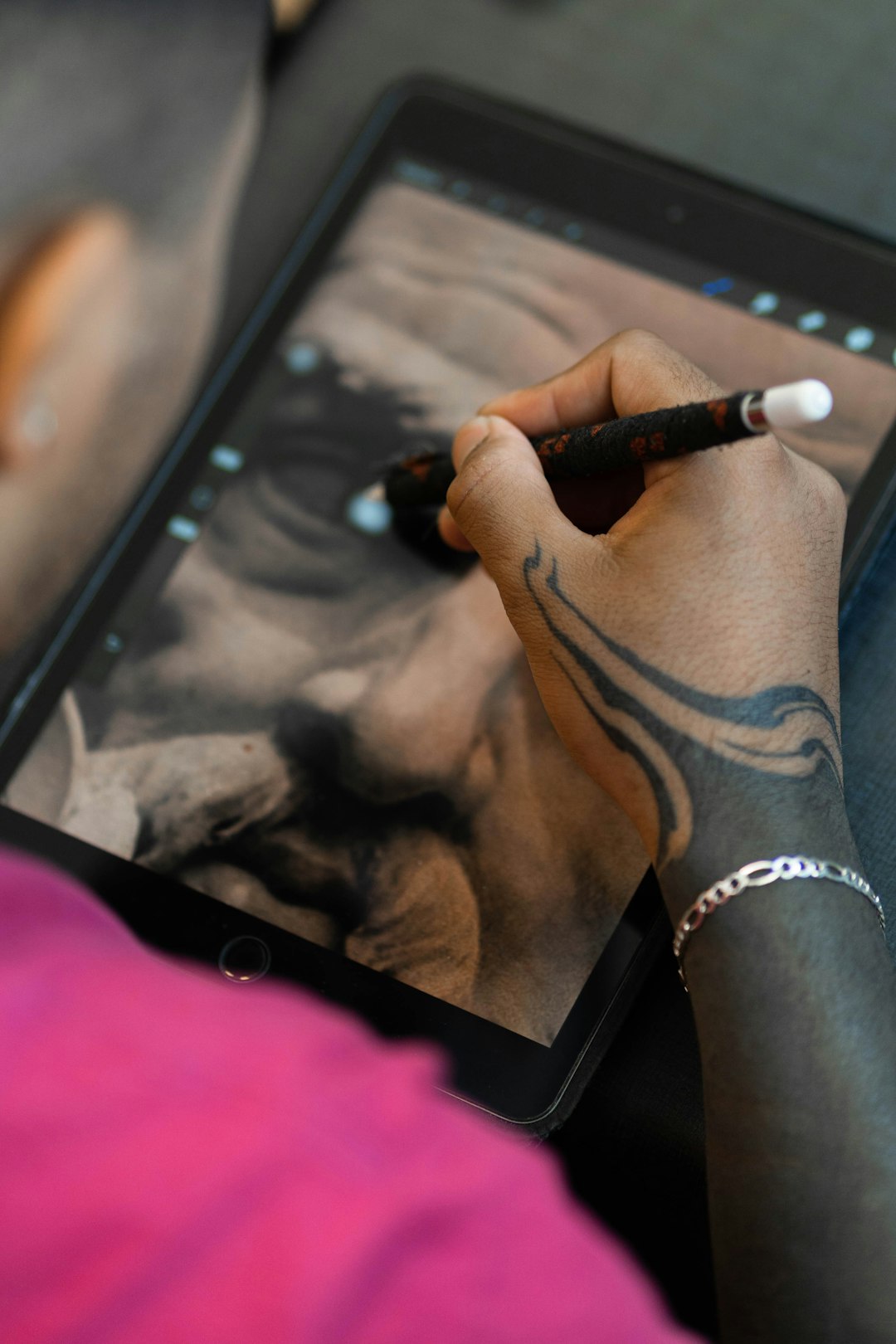
The app matters, but the input device matters more. Drawing with a mouse is clumsy in both Acrobat and Preview. A trackpad is better for signatures, especially on a MacBook. A stylus is best for natural handwriting and clean sketching.
If you use an iPad as a second screen with Sidecar, Preview becomes much nicer for drawing. Adobe Acrobat also works well with tablets and pen input, especially on devices made for stylus use. For detailed markup, such as architectural notes or design corrections, use a pen. Your lines will be cleaner, and you will undo less.
File safety and compatibility
This is where Acrobat earns its reputation. PDF is Adobe’s format, and Acrobat usually preserves structure better than Preview. If the document has embedded fonts, layered graphics, form fields, or existing review comments, Acrobat is the safer choice.
Preview can sometimes save changes in a way that other apps treat differently. Most simple PDFs are fine. Problems show up with formal documents. A filled form might not behave as expected. A comment may appear flattened. A signature may not carry the same validation data.
A good habit is to save a copy before marking anything up. Name it clearly, such as Contract Review Marked Up.pdf. That tiny step prevents a lot of regret.
Which one should you use?
For most Mac users, Preview is the best first stop. It is free, fast, and good enough for casual PDF drawing. If you hit its limits, you will know quickly. Comments become hard to manage. Files need to be shared with Windows users. Signatures need more trust. That is the point where Acrobat makes sense.
For business users, Acrobat is the safer default. It costs more, but it reduces confusion. A team reviewing a 30-page PDF with 80 comments needs sorting, replies, status labels, and clean exports. Preview was not built for that kind of pressure.
Best rule: use Preview for quick personal markup. Use Adobe Acrobat for professional annotation, collaboration, compliance, and long-term document handling.
Practical tips for cleaner PDF drawing
- Use shapes instead of freehand lines when marking boxes, charts, or diagrams.
- Pick one color code, such as red for errors and blue for questions.
- Keep handwritten notes short. Typed comments are easier to read later.
- Zoom in before drawing to improve accuracy.
- Save a duplicate before editing forms or signed PDFs.
Drawing on a PDF should not feel like a project by itself. Preview makes simple markup nearly instant on a Mac. Adobe Acrobat gives you the control needed for serious review work. The right choice depends less on the pencil tool and more on what happens after you draw.
